HOME | Fashion | Beauty | Home Furnishing | Comparison | Top Reviews |

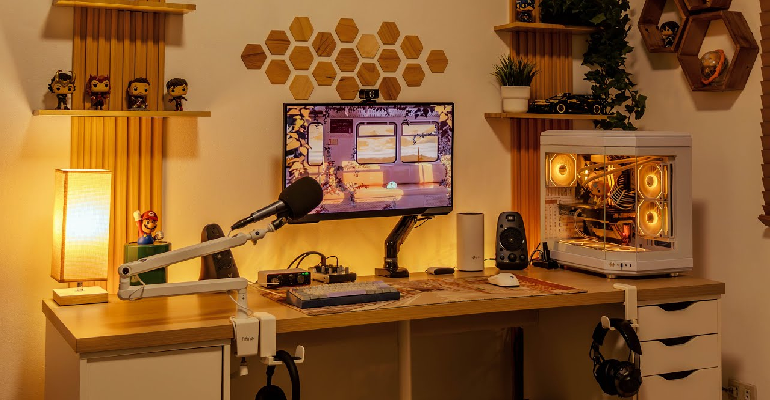
Working from home has produced a specific and depressing category of workspace: the kitchen table with a laptop pushed to one side to make room for breakfast, or the bedroom desk that means your brain never fully separates work from sleep. Neither of these is a proper workspace and neither produces the focus, output, or general satisfaction that a well-considered home office setup does.
A proper home office doesn’t require a dedicated room, though that’s obviously ideal if available. It requires intention applied to a specific area — a corner, a wall, a part of a larger room — that signals to your brain that this space is for focused work. Here is how to create that space without spending more than you need to.
Office chairs are the most consequential home office purchase and the one most people underspend on. Eight hours per day in a chair that doesn’t support the spine properly produces cumulative damage that manifests in back pain, shoulder tension, and fatigue that gets attributed to “staring at a screen” when it’s actually coming from the chair.
The Herman Miller Aeron is the reference standard office chair. At $1,500-2,000 new, it’s a significant investment that requires the argument that eight hours per day for five years of comfortable, properly supported seating amortizes the cost to approximately $0.80-1.00 per hour of use. Many employers will contribute to home office chair purchases as a workplace accommodation — worth asking before buying.
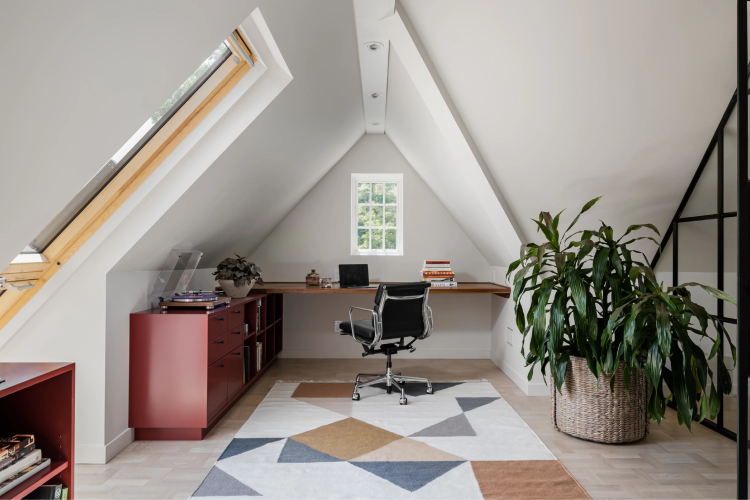
The Steelcase Leap is the second reference-standard chair at a similar price. The key mechanical difference from the Aeron: the Leap’s back flexes with your movement rather than having the Aeron’s fixed lumbar support zone. For people who find the Aeron’s lumbar position doesn’t hit the right spot, the Leap often fits better.
The genuinely good budget option: the Branch Ergonomic Chair costs around $500 and receives consistently strong reviews for lumbar support and adjustability at its price point. It’s not an Aeron replacement but it’s meaningfully better than the office chairs sold at office supply stores for $150-200.
What to avoid: mesh chairs that sag within a year, chairs without height-adjustable armrests (armrest height affects shoulder tension significantly), and anything marketed primarily on how it looks rather than how it supports the body.
Standing desks (height-adjustable desks, technically) have moved from novelty to near-standard in well-considered home office setups. The ability to alternate between sitting and standing during the day reduces the back tension and energy slump associated with prolonged sitting and improves overall output for most people who have tried the combination.
The FlexiSpot E7 Pro is around $400-500 and is the most frequently recommended standing desk in online home office communities — robust build quality, programmable heights, stable at standing height. The Uplift V2 at a similar price is the other consistent recommendation.
If a standing desk is not in the budget: a desk at the correct sitting height is more important than a standing desk. Correct sitting height means your elbows are at roughly 90 degrees when your forearms rest on the desk, your monitor is at eye level (not below it, which causes the head-drop posture that contributes to neck pain), and your feet are flat on the floor or on a footrest.
Monitor placement: the top of the monitor should be at or slightly below eye level, the monitor at arm’s length distance from your face, and the monitor tilted slightly back (top of screen slightly further from you than bottom). A monitor arm ($30-80) that mounts to the desk and allows height and angle adjustment is one of the most impactful ergonomic investments because it decouples monitor position from whatever surface the monitor would otherwise sit on.
Natural light from the side is ideal — not behind the monitor (creates glare), not behind you (creates reflection on the screen), but from the side so it illuminates your face and workspace without interfering with the screen.
Artificial lighting for a home office should include: a desk lamp positioned to illuminate the work surface without creating screen glare, ambient room lighting warm enough to be comfortable for extended hours, and if you’re on video calls, a ring light or key light (the Elgato Key Light Air is the reference at around $100) positioned in front of you to light your face evenly.
Bias lighting — a strip of LED lights behind the monitor — reduces eye strain by reducing the contrast between the bright monitor and the dark background around it. The Govee RGBIC Bias Lighting strips are around $15-30 and the difference in eye comfort during long work sessions is real and measurable.
A desk with visible cable chaos looks like a problem waiting to be solved regardless of how good the equipment on it is. Cable management is the single most impactful visual change to an existing setup and costs almost nothing.
Cable clips (adhesive clips that route cables along the desk edge), cable raceways (plastic channels that conceal multiple cables along a wall), a cable box (an enclosure that hides a power strip and the nest of cables feeding into it), and velcro cable ties (reusable, better than zip ties because they don’t require cutting and re-doing when cables change) are the four tools that solve most cable situations for under $30 total.
Under-desk mounting — using adhesive mounting strips or brackets to attach a power strip to the underside of the desk — removes the power strip and its cables from the visible workspace entirely. This is the most dramatic single cable management change and requires no drilling or permanent modifications in most cases.
A wrist rest for keyboard and mouse — not a luxury, a functional tool for anyone who types for hours per day. The gel and memory foam options from Fellowes or MOFT sit under the wrist during typing and typing breaks and reduce the tension that accumulates in the carpal tunnel area during extended computer use.
A document holder or tablet stand positioned beside the monitor prevents the constant head movement of looking from screen to paper and back that produces neck fatigue during document-heavy work.
A standing mat — a thick, cushioned mat for standing desk users — reduces leg fatigue during standing periods. The Topo by Ergodriven is the most reviewed option; the contoured surface encourages subtle movement that reduces the fatigue of static standing.
Noise-canceling headphones for focus and calls. The Sony WH-1000XM5 is the current reference for consumer noise cancellation. The Bose QuietComfort 45 is the alternative with a slightly different sound profile and comparable noise cancellation at a similar price. Either one converts a noisy home environment into a focused workspace in a way that’s genuinely difficult to achieve through any other means.